Downgrade MIUI 9 to MIUI 8: Xiaomi has rolled out MIUI 9 for many Xiaomi Phones. I have already many articles in which I showed how to download MIUI 9 on any Xiaomi Phone including Redmi Note 4, MI 6, Redmi Note 3 and much more. Also, I have shown the amazing features of MIUI 9 including the MIUI 9 GIF Wallpaper and MIUI 9 themes.
Also Check: Android O Oreo for Redmi Note 3
Why Downgrade to MIUI 8 from MIUI 9?
Many of the Xiaomi fans including me have updated to MIUI 9. Since MIUI 9 is in the early stage, there are many issues and bugs in MIUI 9. And only few Xiaomi phones will get the Split Screen in MIUI 9. Is your device eligible?
Because of the drawbacks of MIUI 9, you may be interested to revert back to MIUI 9 from MIUI 8. I present you a very simple guide on how to downgrade Xiaomi phone from MIUI 9 to MIUI 8. You can enable Auto Dialer App in your Xiaomi Phone.
Downgrade MIUI 9 to MIUI 8 On Any Xiaomi Phone
Note: This method is the easiest method to downgrade MIUI 9 to MIUI 8. And it will work on any Xiaomi phone including Redmi Note 4, Redmi Note 3, MI 4/5/6, Redmi 4/4A/4X/3S/Prime, MI Mix/2, MI Note, etc.
-
- Switch off your Xiaomi Phone. In my case, it is Redmi Note 4.
- When the phone is completely off then press Volume Down Key and Power Key simultaneously for few seconds.
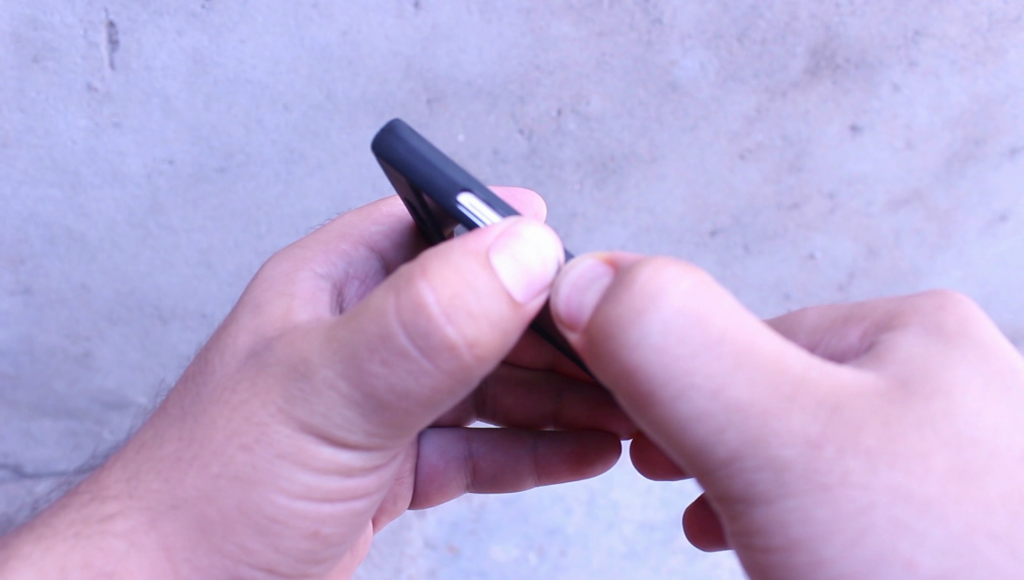
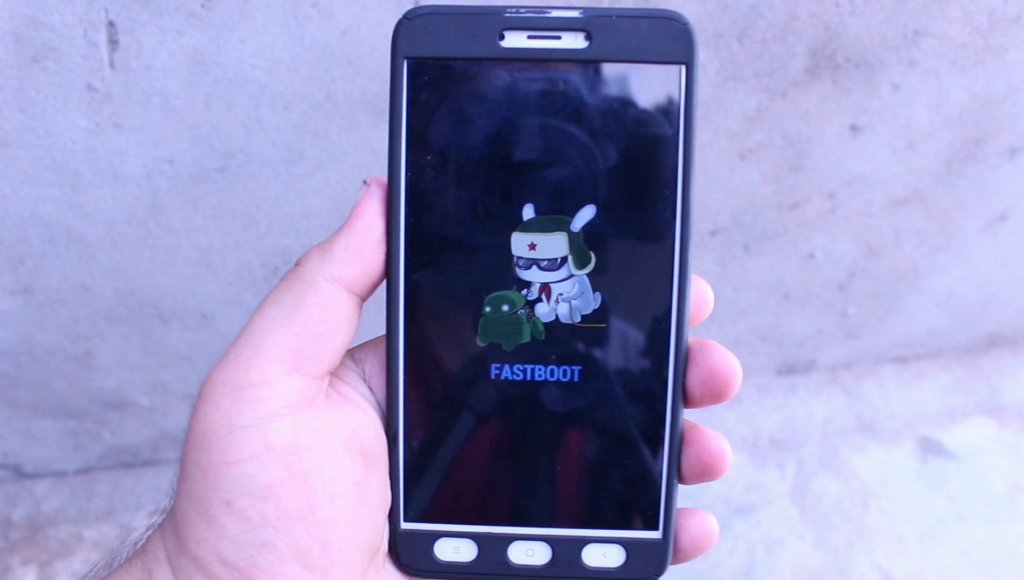
- Now, your Xiaomi Phone will be taken into the fast boot mode.
- Navigate to the downloads area of this page and there you will find the three downloads link. Download and extract all the three files one after the other.
Also Check: TWRP for MIUI 9 - Install the ADB drivers. It is very important to install the ADB drivers because it helps the MI Flash tool to recognize your Xiaomi Phone.
- Open the MI Flash Tool on your computer. It works only on windows and will not work with Mac or Linux.
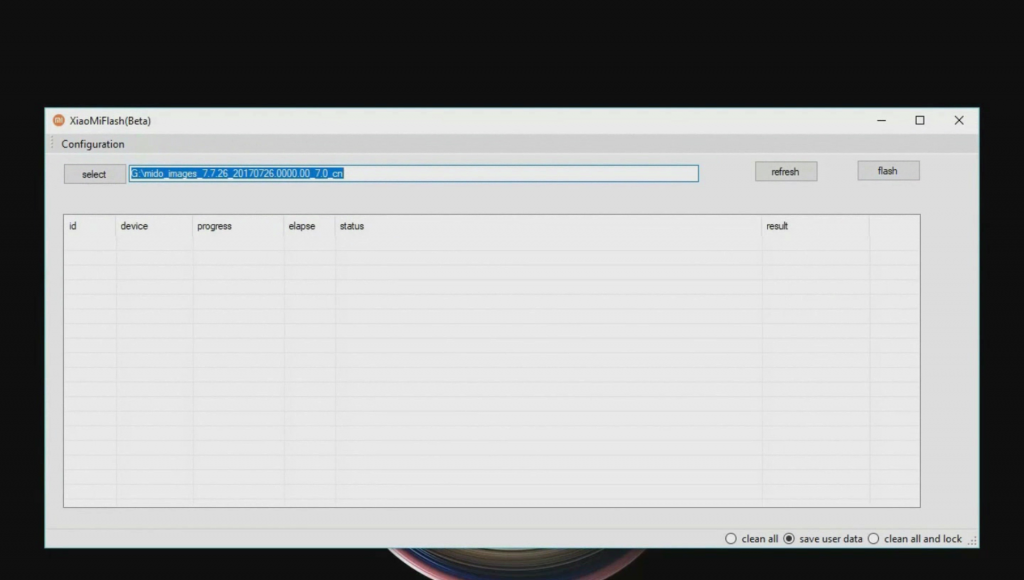
- Click on refresh and it will show your Xiaomi Phone connected to the computer.
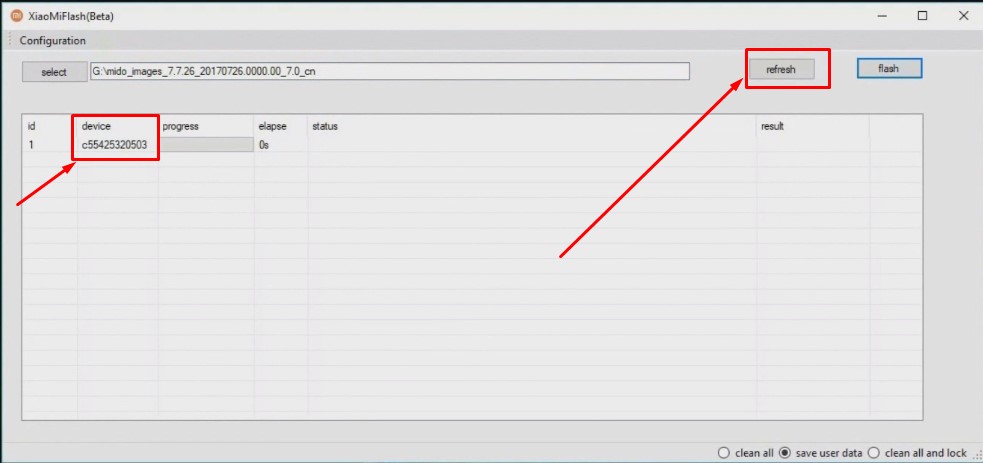
- Now click on Select on the MI Flash Tool.
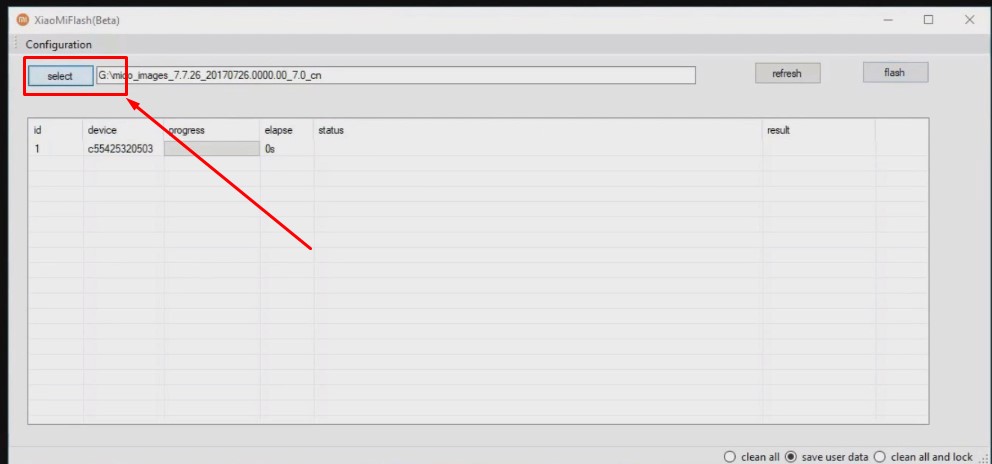
- Select the images folder of your Xiaomi Phone, as shown in the image below.

- Now click on Flash and it will start flashing MIUI 8 on your Xiaomi Phone.
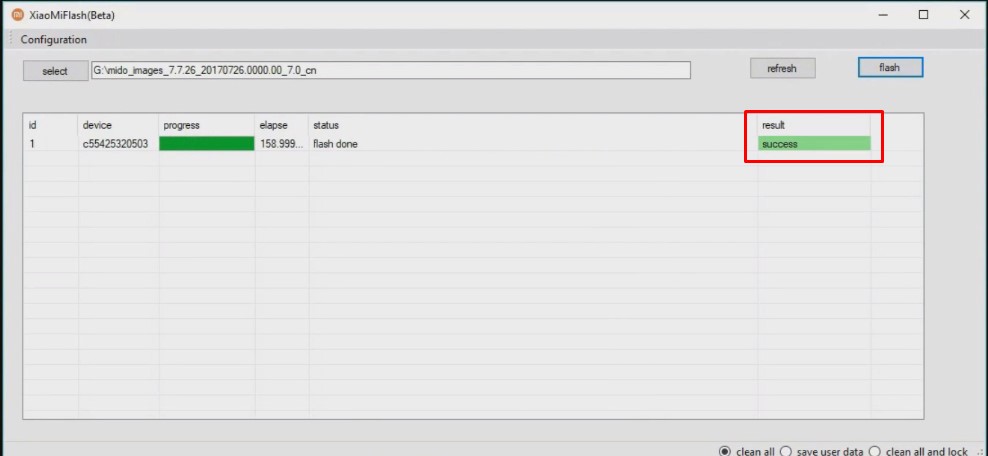
- Remove your Xiaomi Phone from the computer and turn it on.
- Go through the basic Setup of MIUI 8.
- Congratulations for installing MIUI 8 on your Xiaomi Phone.
Also Check: How to hide apps on Android
Downloads:
MIUI 8 ROM (Select the ROM of your model)
Also Check: MTK Drivers
Video Tutorial:
Final Verdict:
I have shown the easiest way to downgrade MIUI 9 to MIUI 8. This method of going back to MIUI 8 from MIUI 9 will work on every Xiaomi Phone. And also it will on both locked bootloader and unlocked bootloader phones of Xiami. If still, you face any issue to revert back to MIUI 8 from MIUI 9, then leave your comments and I will surely help you with best possible solutions.
Leave a Reply